
How to import your Tonic practice studios into Tonic Notes
Record your Tonic Music studios and import them into Tonic Notes as practice sessions, or bring in all your past studios at once.
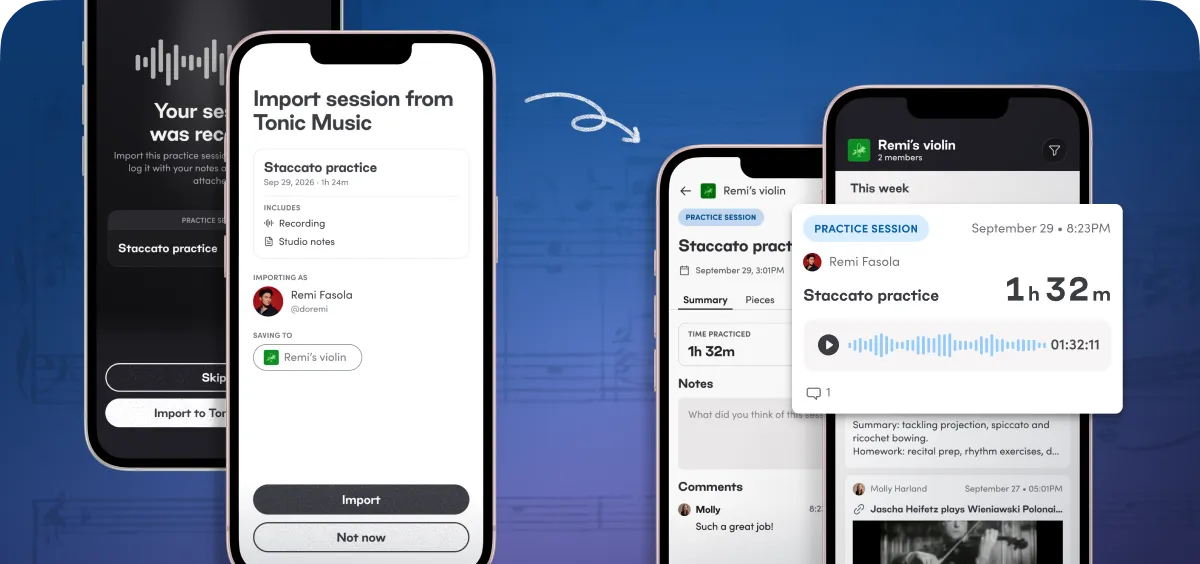
Your practice and your lessons, in one place.
Most musicians learn in one place and practice in another. The lesson, and everything your teacher said in it, lives in Tonic Notes. The practice happens during the week, often in a Tonic Music studio. Until now the two never met. With Tonic Notes imports, a studio you record in Tonic Music is saved to Tonic Notes as a practice session, with its recording and practice time, right beside the lessons it came from.
Here is how it works, in detail
Recording and importing a studio
Before you start. You need both apps on the same phone, an active Tonic Notes subscription, and to be signed in to Tonic Notes. Update both to the latest version first.
Turning on imports. In Tonic Music, open the menu on the left, then Tonic Notes imports, then Turn on Tonic Notes imports. The row in the menu now reads ON. If you have played studios before, Tonic Music also offers to bring those in, which is covered below.
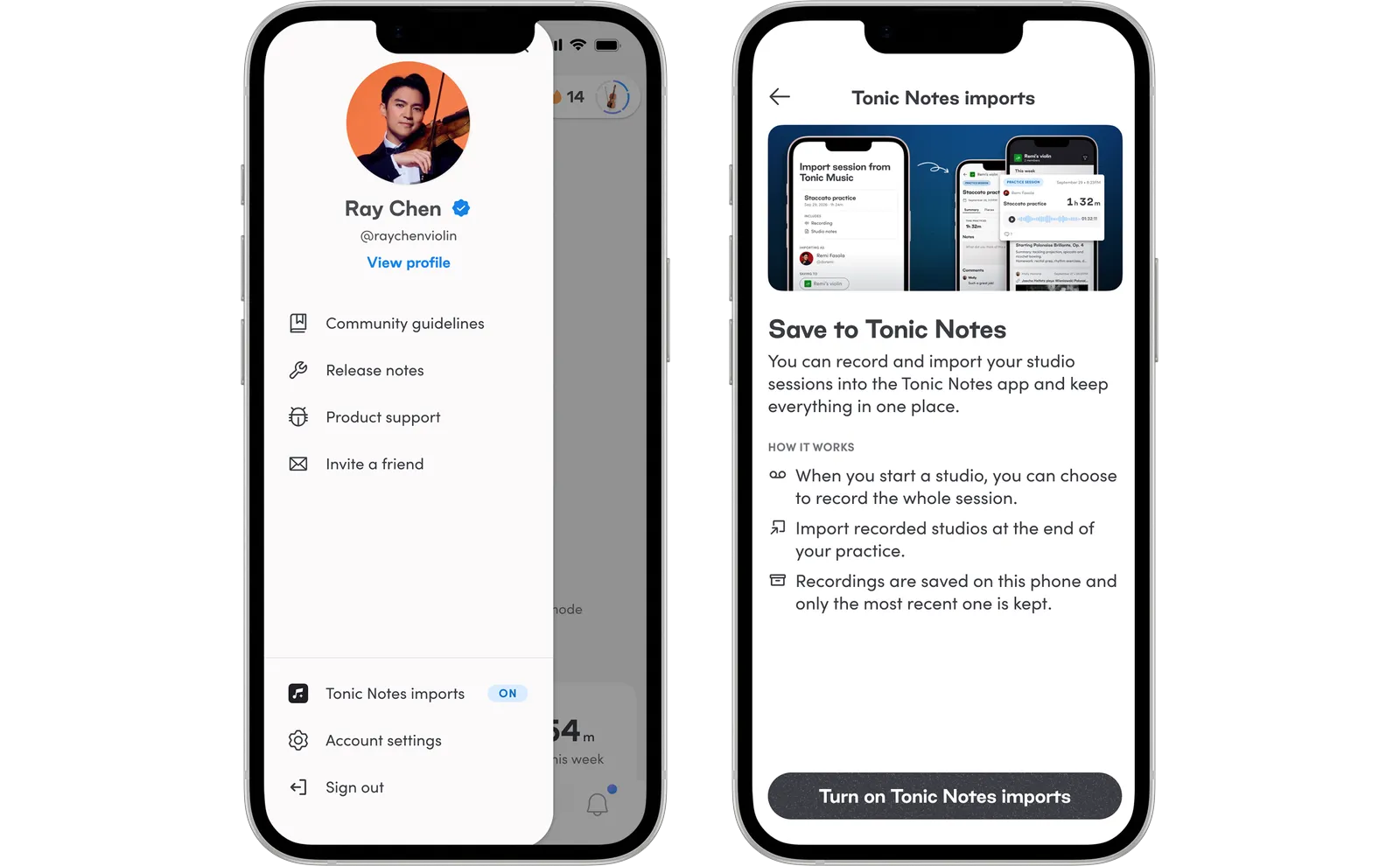
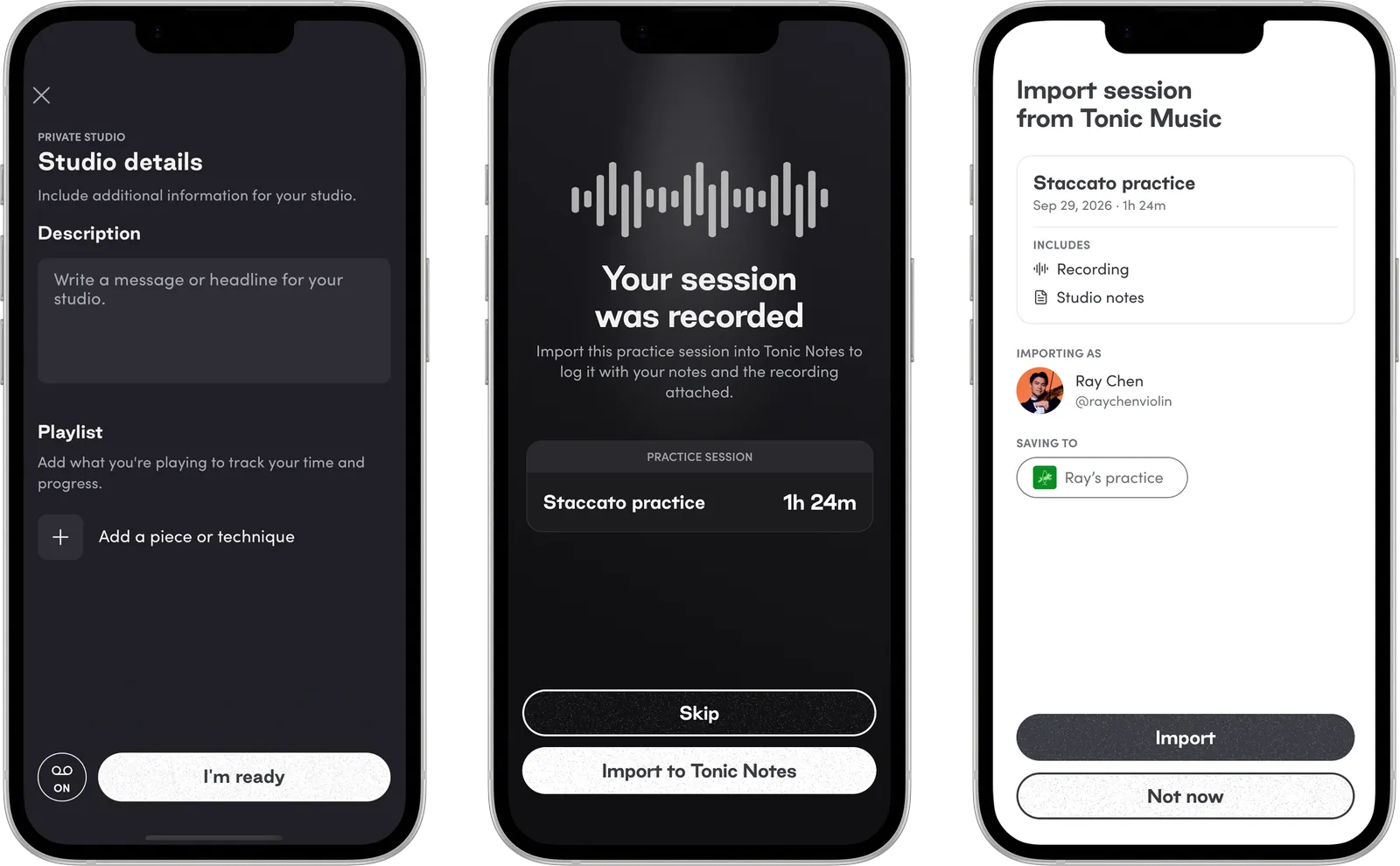
Recording. Set up a studio as usual. On the last screen before it starts, a round record button sits next to I'm ready. While imports are on, it is set to ON, so the whole session is recorded on your phone. To skip recording a particular studio, tap the button and choose Don't record this studio. The next studio records as normal.
Importing. When the studio ends, you will see Your session was recorded. Tap Import to Tonic Notes, and Tonic Notes opens with the session ready to save. It shows which profile it is importing as and which pod it is saving to, and you can change either, so you can send it to a pod you share with your teacher and they can see how your week went. Tap Import, and the studio appears as a practice session with its recording, practice time and studio notes.
Importing later. You do not have to import straight away. A Ready to import banner waits on your Tonic Music Home screen, and the studio's own page has an Import to Tonic Notes button. The recording waits on your phone for up to 7 days, and only the most recent one is kept, so a new recorded studio replaces the last recording. Import it within a week and before your next recorded studio if you want to keep it. To let it go instead, tap Discard recording on the studio's page.
Bringing in your past studios
Imports are not only for new studios. If you have been practicing in Tonic Music for a while, you can add every studio you have played to Tonic Notes at once, so your practice history starts from your first studio instead of from today.
The first time you turn imports on, Tonic Music asks whether you would like to import your past studios. You can also do it any time from Tonic Notes imports, with Import past studios to Tonic Notes. Tonic Notes then asks which profile and pod they belong in, and imports them in the background while you keep using the app. A notification lets you know when it is done.
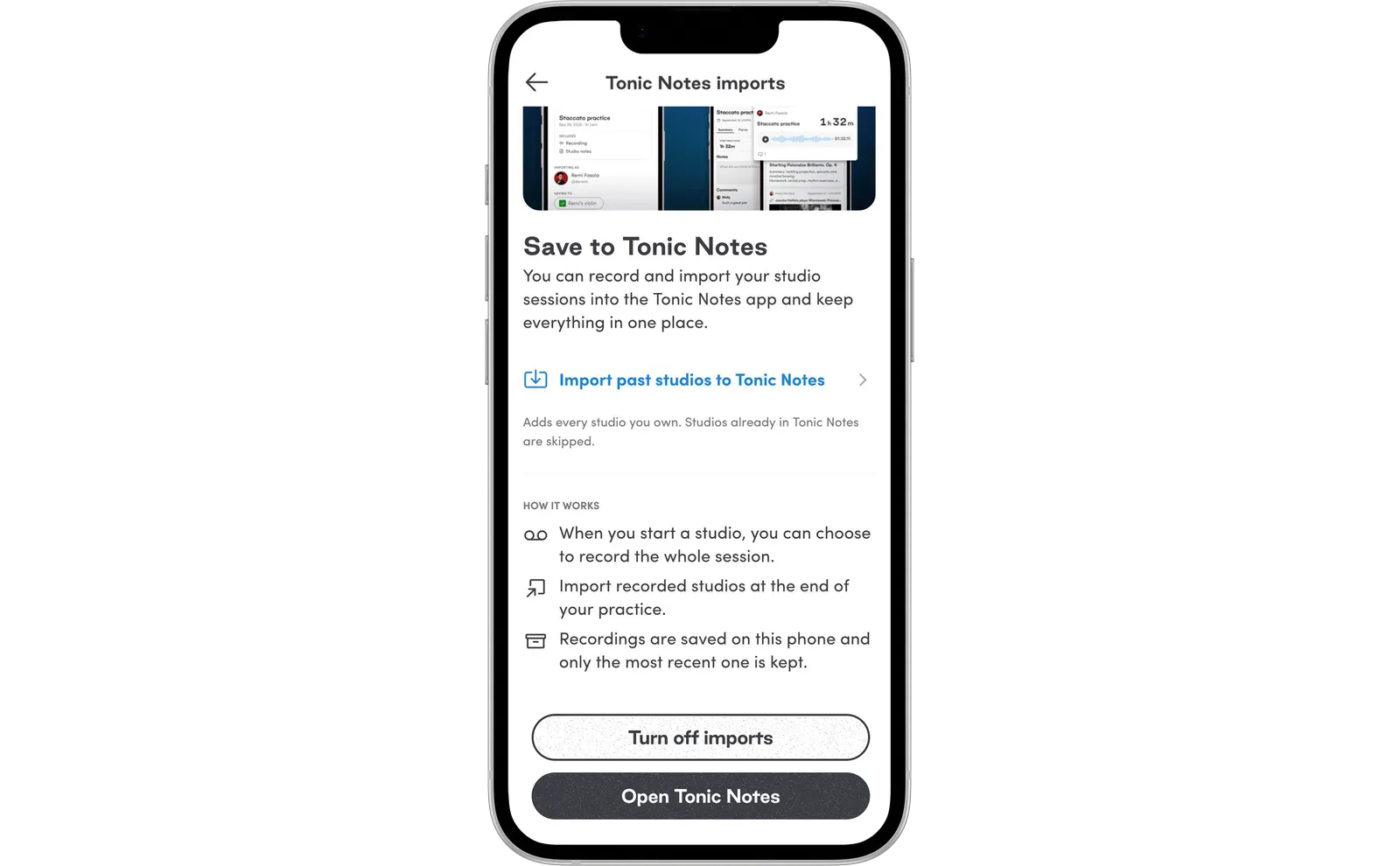
Every studio you own comes in as a practice session with its date, time practiced and session notes. Past studios arrive without recordings, since only your latest recording is kept on the phone. Running the import again is safe: studios already in Tonic Notes are skipped, so nothing is duplicated.
Good to know
Breaks are not recorded. Recording pauses while you take a break, or while a phone call interrupts it, and picks up again on its own when the studio continues.
Long or interrupted recordings. Recordings stop at 6 hours. If a recording stops early, because your phone runs low on storage or Tonic Music closes unexpectedly, the import says how much was recorded.
Short studios import without audio. A recording is included once a studio has run for at least 5 minutes. Shorter studios can still be logged in Tonic Notes, without the recording.
Older Android phones. Recording needs Android 10 or later. On older phones, you can still import your studios' details.
Turning imports off. Open Tonic Notes imports and tap Turn off imports. New studios stop recording, and everything you have already imported stays in Tonic Notes. If a recording is still waiting to be imported, Tonic Music asks whether to import it first or delete it.
This is the routine we had in mind: practice in a studio during the week, import it when you finish, and walk into your next lesson with your teacher already up to date. If you do not have Tonic Notes yet, it records your lessons and turns them into a transcript and summary, builds a practice plan for your week, and keeps your teacher in the loop. You can download it from Tonic Notes in the Tonic Music menu.
We built imports so your practice and your lessons can finally live together, and we would love to hear how they fit into your week. Tell us what is working, what is missing, and what you would like to see next at support@tonicnotes.com.